
Customer Submissions
Use All Submissions and the submission detail page to manage one customer order at a time.
This guide walks through how Subby is used from both sides of the grading workflow: the admin tools used by staff and the front-end portal used by customers.
The admin side of Subby is built around two levels of work: customer submissions and master grader orders. Customer submissions track individual customers. Grader orders track batches at PSA, CGC, BGS, SGC, or another grading company.
Use All Submissions and the submission detail page to manage one customer order at a time.
Use Assignment Desk and Grader Orders to organize batches that are at a grading company.
Status synchronization can trigger email and SMS updates when customer opt-in and settings allow it.
The Assignment Desk is used when staff needs to connect customer submission groups to grader orders in one pass. A master grader order represents an order or batch currently at the grading company.
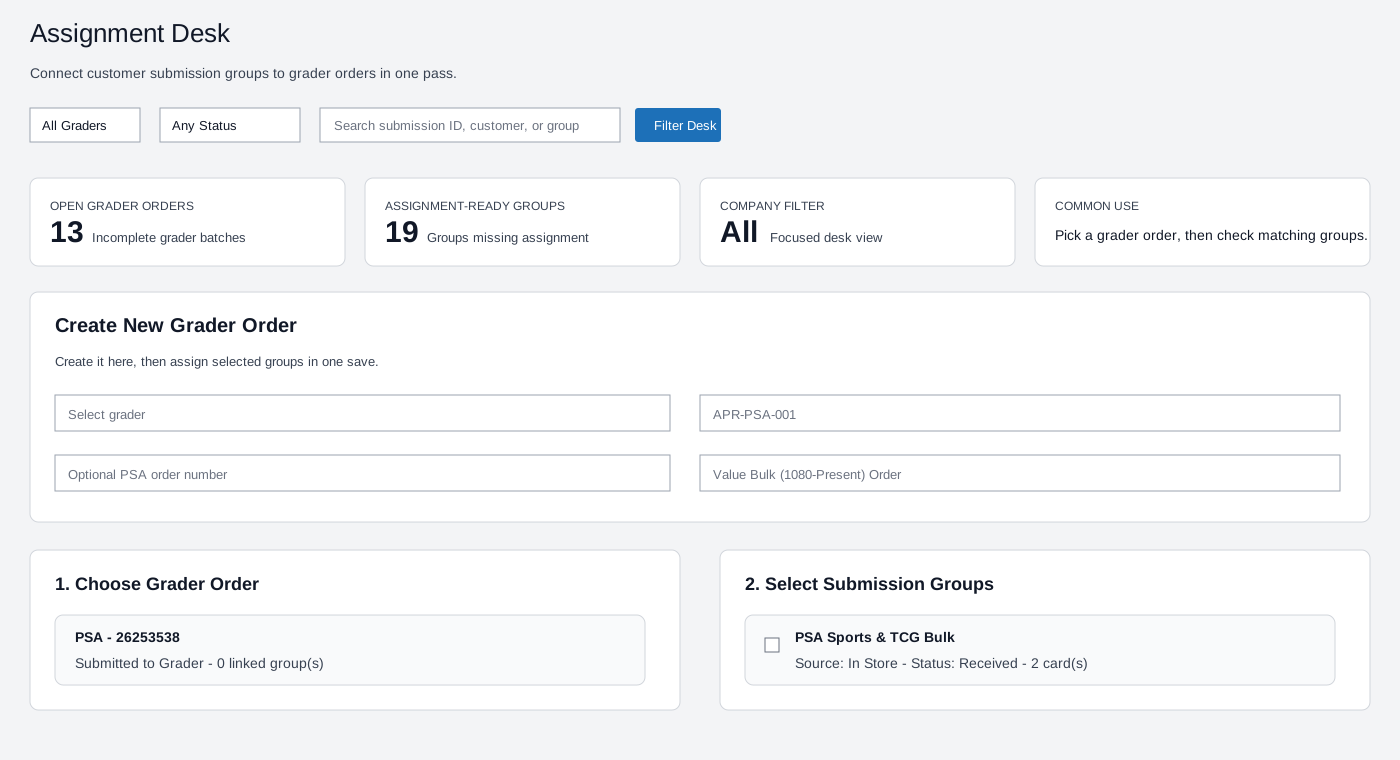
Filters, summary cards, Create New Grader Order, and two-column matching workflow.
Grader Orders is where staff adds and manages orders from the grader website. It can also sync PSA orders with PSA progress data when PSA automation is configured.
Use quick add for PSA orders, including multiple PSA orders at once. Expand the Add Grader Order panel to create orders for any grading company.
PSA orders can show progress, current step, estimated return, shipment information, and last sync time. PSA synchronization can apply updates automatically.
Non-PSA companies are updated manually. Staff can mark orders returned or completed, then apply those updates to linked customer submissions.
Applying or syncing grader-order status can trigger customer email and SMS notifications according to notification settings and each customer's SMS opt-in.
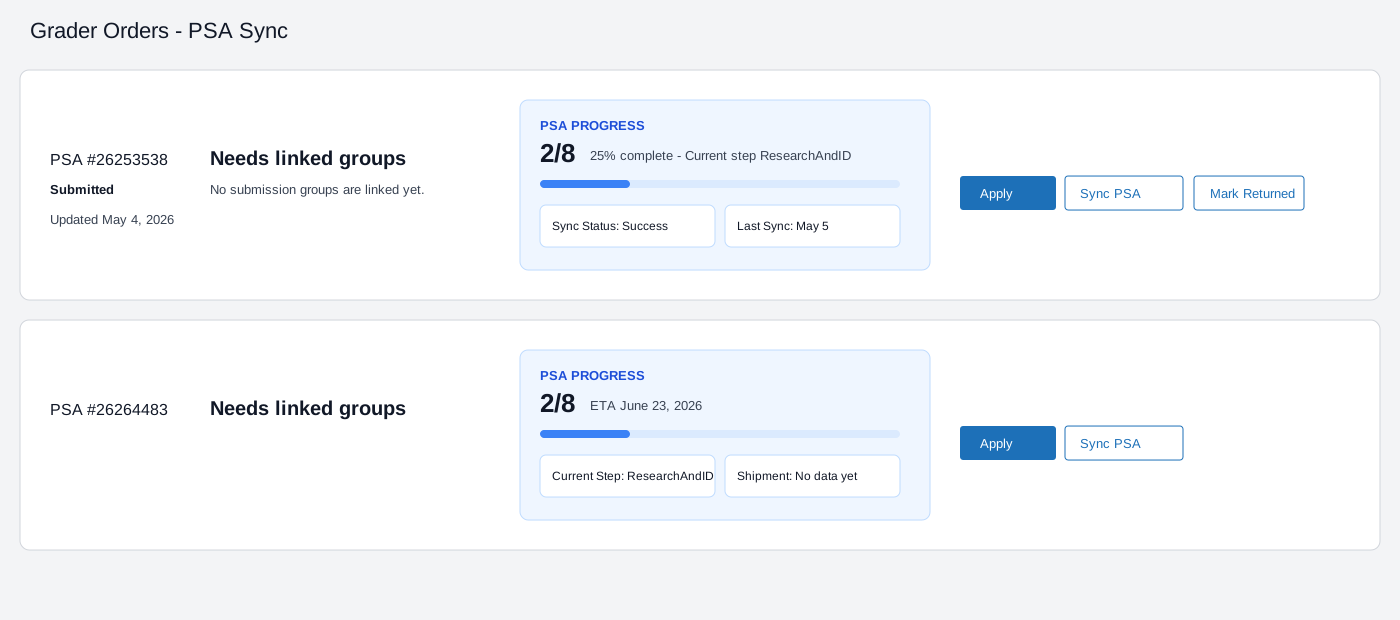
PSA progress panel, sync status, current step, ETA, and Sync PSA Progress action.
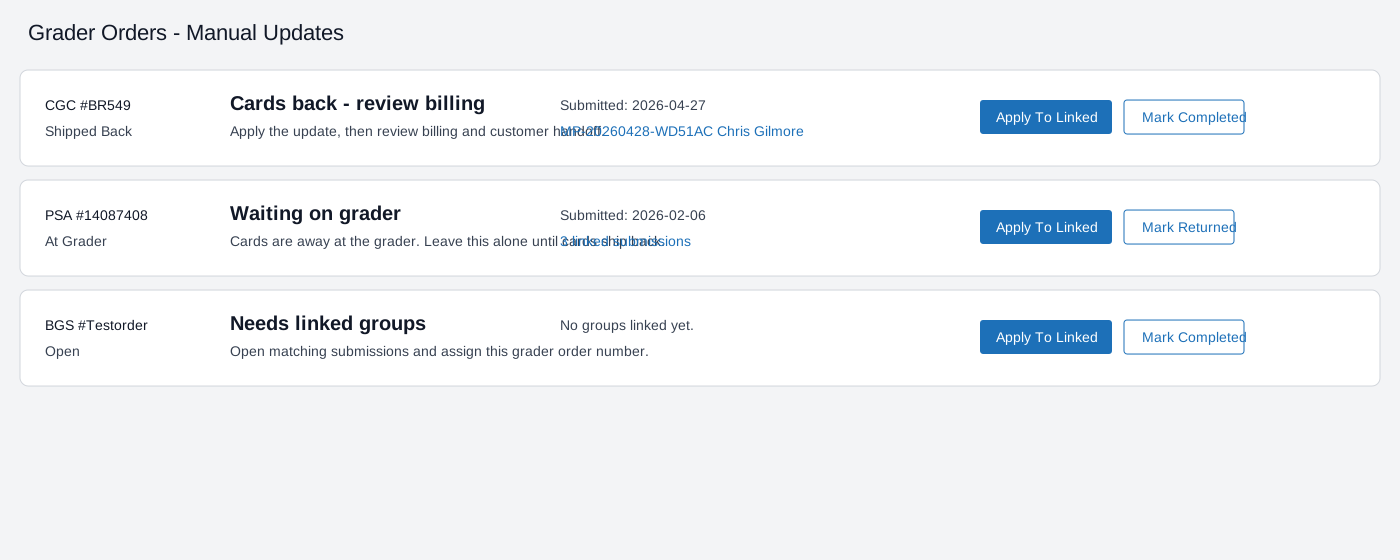
Manual statuses such as Waiting on grader, Cards back, Mark Returned, and Mark Completed.
All Submissions is where staff manages work from the customer level. Search by customer name, submission ID, or grader order number, then use the dashboard cards to focus on active work, needs-attention items, generated invoices, paid invoices, or submission source.
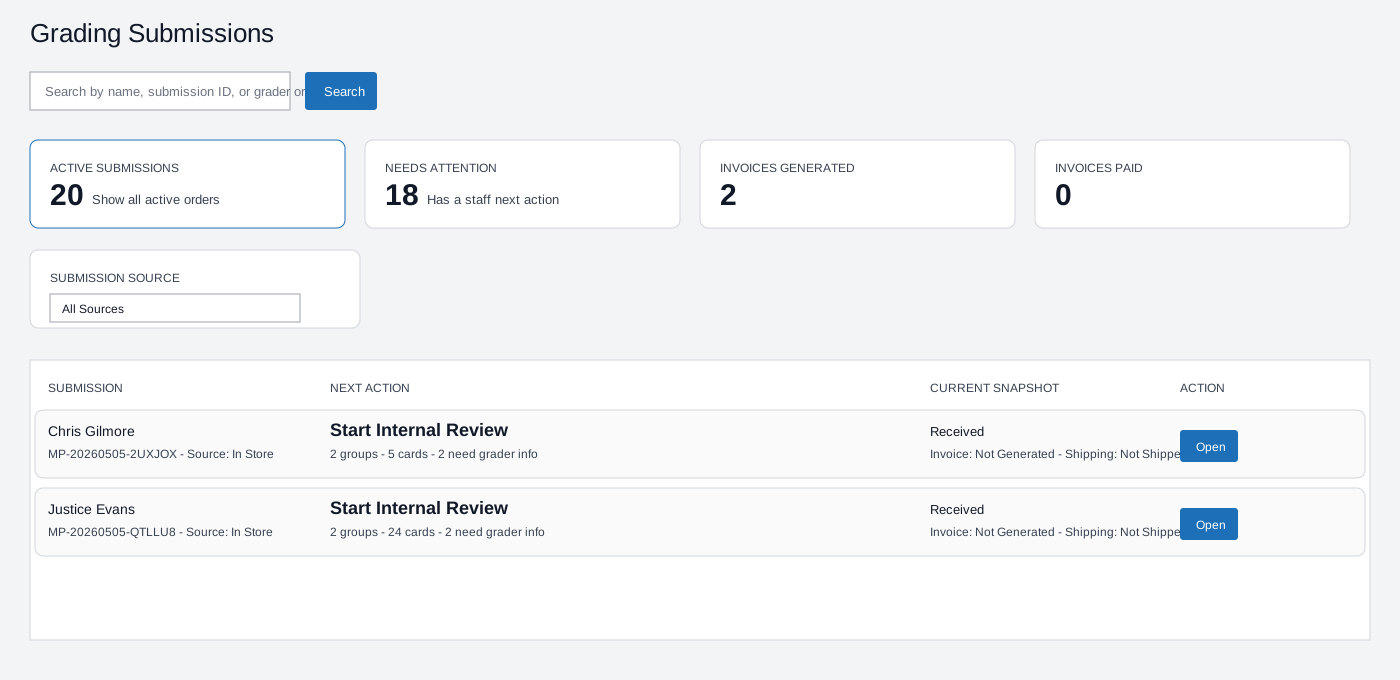
Search, queue filters, next action, current snapshot, and Open buttons.
The submission detail page starts with the Next Action dashboard. Staff can edit groups, review billing, view the audit log, print packing slips, edit customer information, manage shipment tracking, and send invoices.
Pricing is locked when the customer submits the order. If a grading company issues an upcharge later, staff can enter the upcharge in the billing section, add a billing note, save adjustments, and send the invoice or standalone upcharge invoice when ready.
The Pricing screen is where staff edits service-level pricing, details, turnaround estimates, notes, visibility, highlighted rows, and the review add-on price.
When a customer uses the web form to create a submission, Subby locks in pricing based on the rates saved at that time. Future pricing changes affect new submissions only.
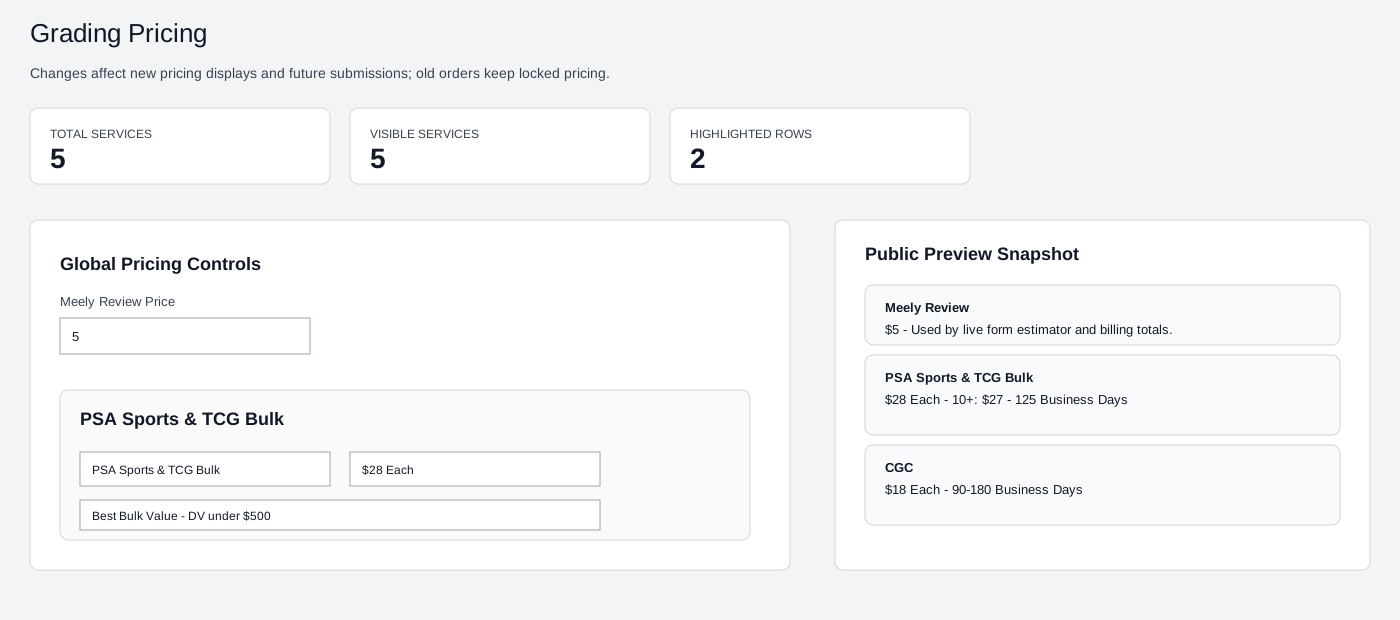
Global pricing controls, service-level rows, visibility, highlighted services, and preview snapshot.
The Statistics page gives staff a high-level view of projected revenue, paid revenue, awaiting payment, uninvoiced value, submission totals, card totals, invoice conversion, and workflow status.
Track projected revenue, paid revenue, average submission value, invoice conversion, and active volume.
See what is returned, at grader, completed, uninvoiced, or awaiting customer payment.
Use top players, top sets, sports, graders, and years for social media and customer engagement.
Customers begin at the grading portal, enter their contact information and cards, submit the order, receive a submission ID, and can later look up the submission by ID and email address.
Customers start at meelypops.com/grading.
They select Mail In, In Store, or Show Order, then enter contact and address details.
Customers can choose to receive text message updates about their grading submission.
They add card details, choose services, select review add-ons, and add as many cards as needed.
Subby tracks service fees, review fees, and estimated order total across all cards and services.
The confirmation page and email provide the submission ID and card list.
For each card, customers select a submission option, quantity, sport or TCG, year, set name, card number, player or character, serial number, and whether to add Meely Review.
The estimated total updates as cards are added. Final billing can still include later grader upcharges if the grading company applies them.
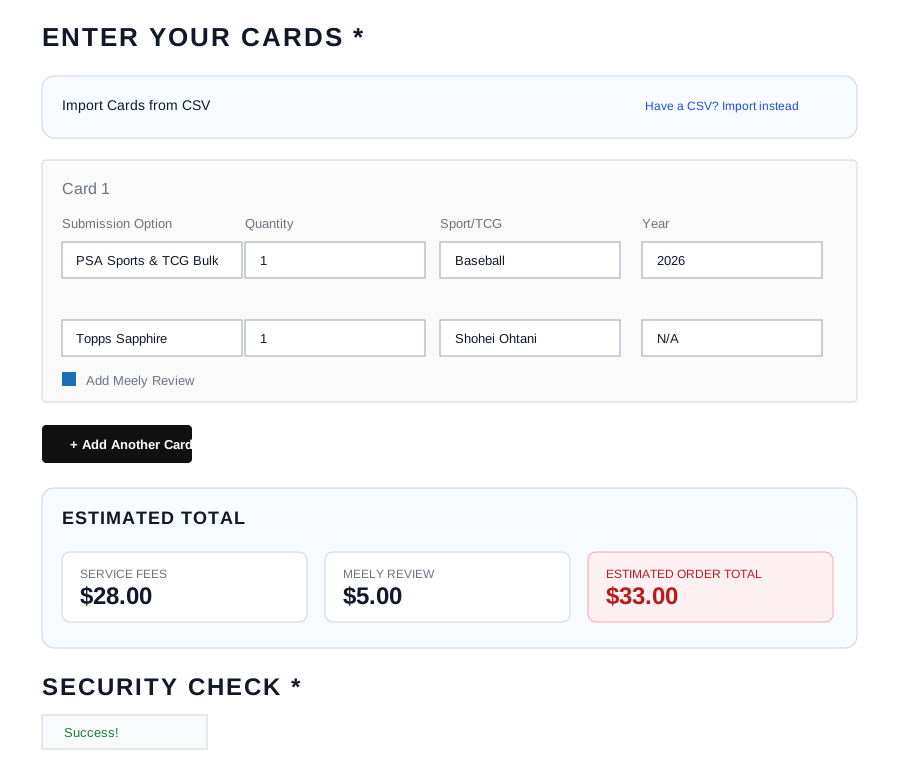
Card fields, Add Another Card, estimated total, security check, and Submit Form.
After submitting the form, the customer sees a Submission Received page with an order number. Subby also sends a confirmation email with the submission ID and the list of cards entered at that time.
Customers should keep the submission ID for reference and use it whenever they contact the shop about the order.
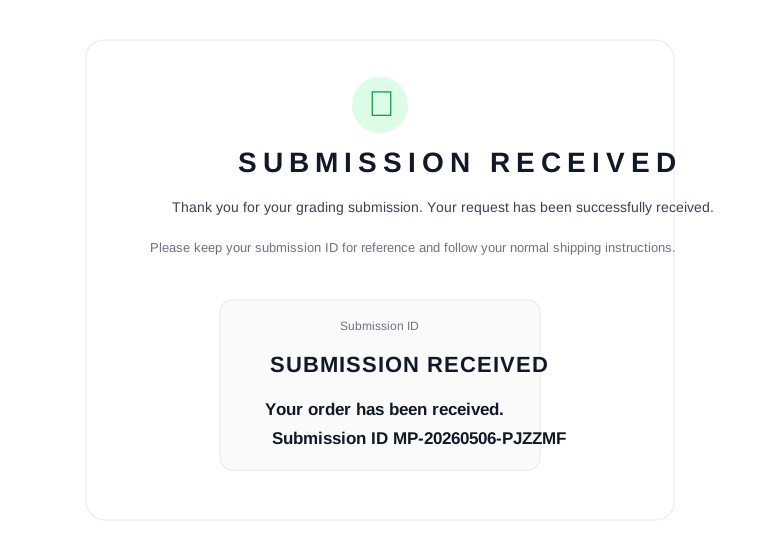
Confirmation message, submission ID, and customer instructions.
Customers can look up a submission by entering the submission ID and the email address used on the order. The lookup page shows submission details, SMS status, pricing summary, invoice status, line items, service total, review total, upcharge total, and estimated total.
The pricing summary uses the prices locked at the time of submission. Final invoicing may still include later grader upcharges when applicable.
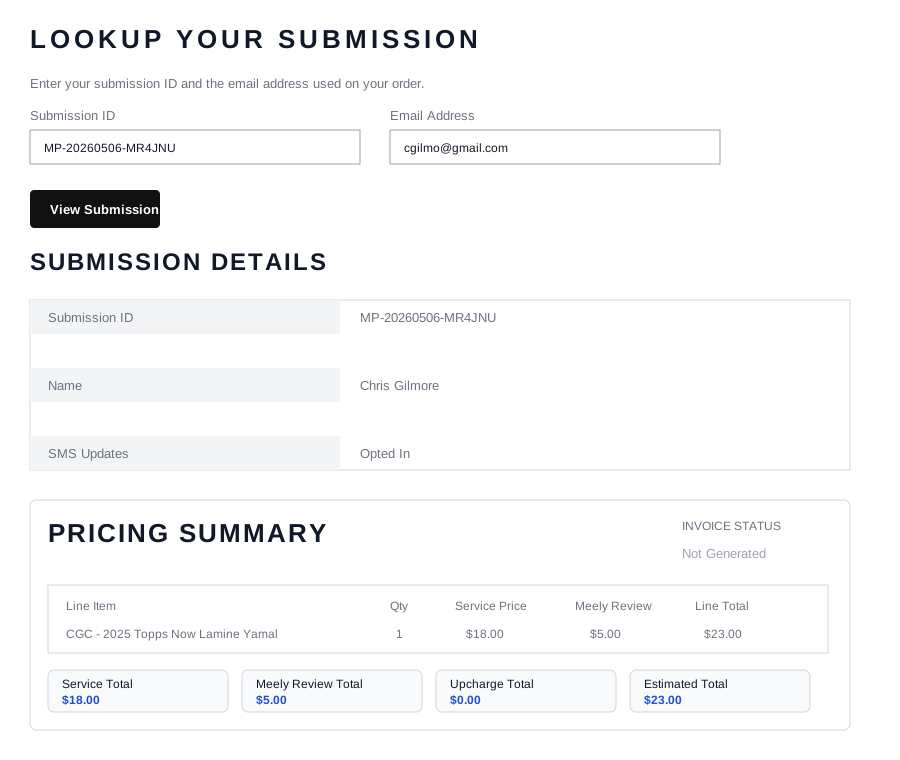
Submission ID, email lookup, submission details, pricing summary, and invoice status.